

Feed image
Make the product clear in one polished frame.
Use a still for immediate recognition, controlled styling, flexible campaign copy space, and close inspection of packaging or product detail.
One product photo → Instagram image and video creative
Turn one product photo into a polished Feed still or vertical motion direction for Reels and Stories. Start with a tactile editorial beauty image, compare a calm vertical reveal, and continue in Studio with a clear creative choice.
Two Instagram directions
Match the composition to the viewing moment while keeping the product recognizable, readable, and central to the campaign idea.
One source, two visual paths
An AI Instagram ad generator turns one product photo into polished still and motion directions for Feed, Reels, and Stories. Choose a product-led image or vertical video path, refine supported format settings, review branding and visual details, then export the approved creative and complete campaign setup in Meta Ads Manager.
Feed image
Use a still for immediate recognition, controlled styling, flexible campaign copy space, and close inspection of packaging or product detail.
Reels & Stories video
Use motion when pacing, camera movement, a reveal, or material detail helps develop the product story across a short sequence.
Two Instagram-native previews
Each card keeps the same product input beside a platform-specific creative preview so the placement choice stays visually grounded.
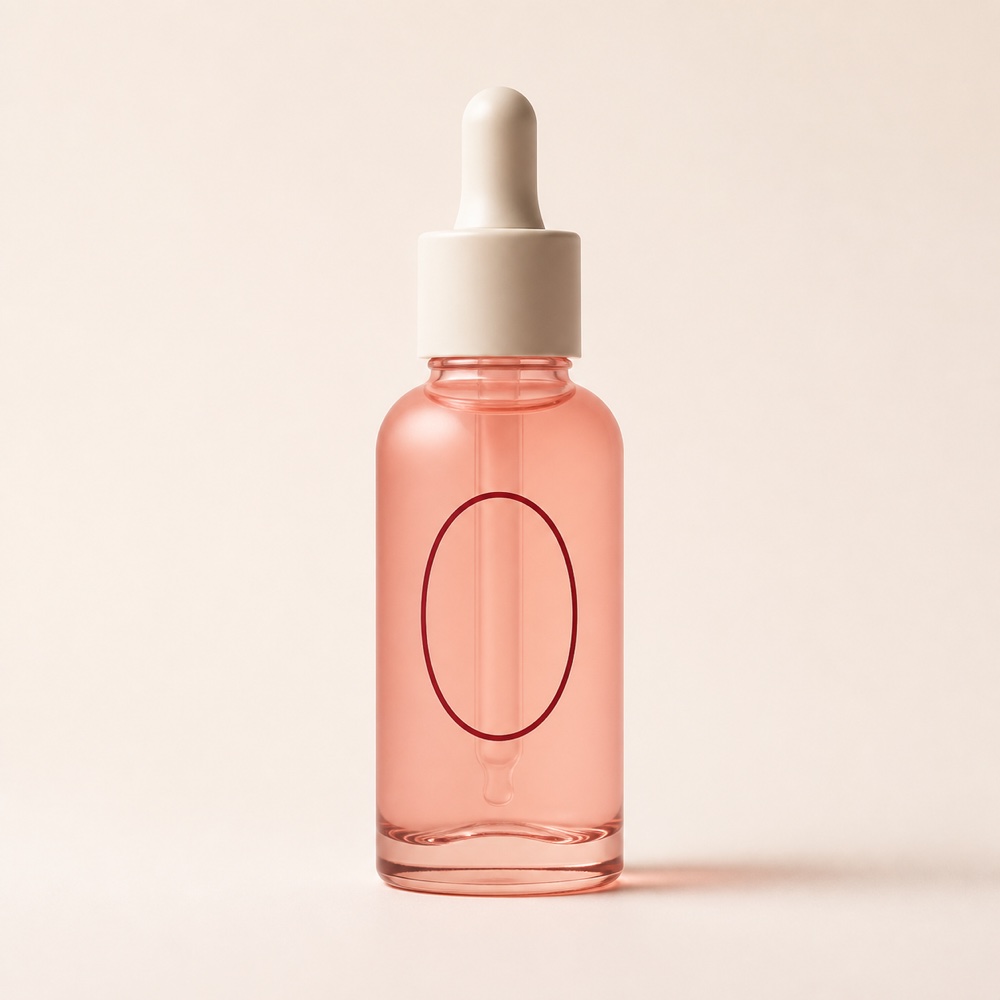
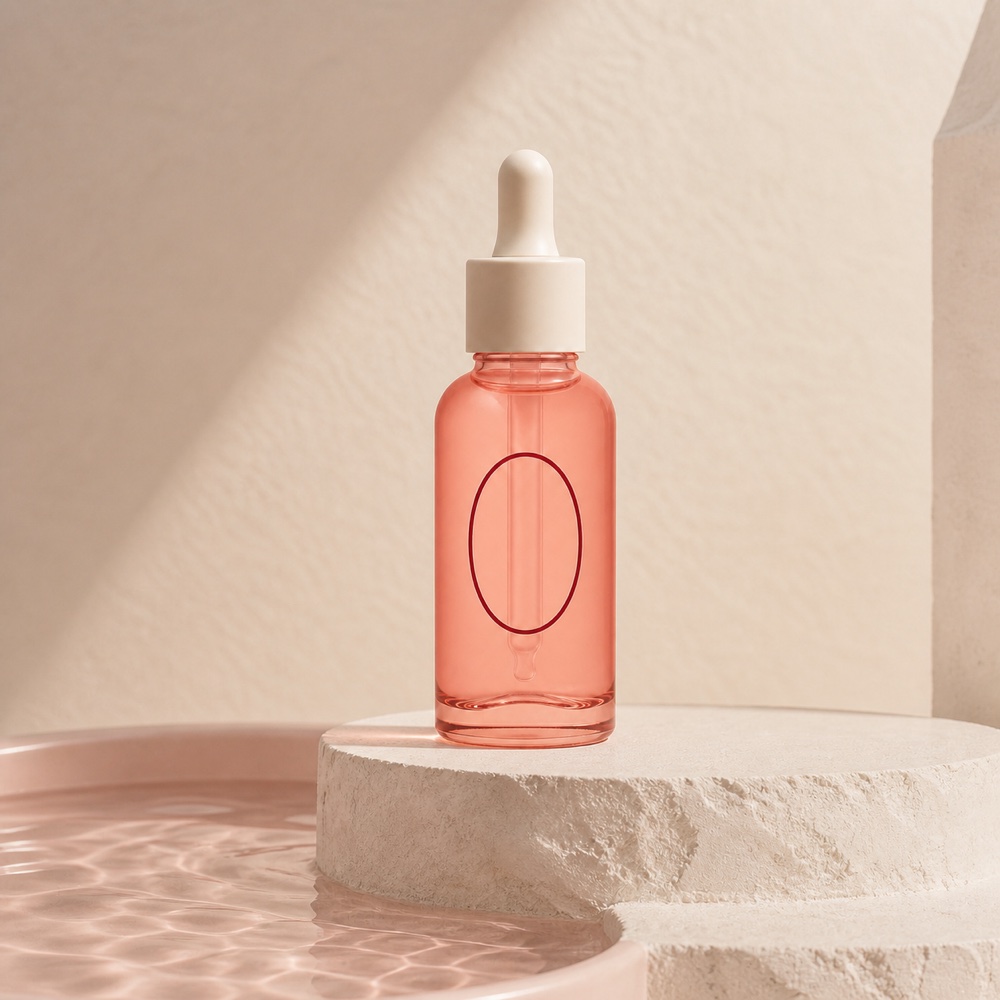
Feed imageFeed image · Product-first still
Platform-style creative preview
Use a tactile square composition, soft architectural shadow, refined reflections, and deliberate negative space for a save-worthy Feed creative.
Review focus: Inspect the bottle count, coral glass, ivory dropper, burgundy oval, crop, reflections, and approved campaign copy at full size.
Explore the related workflowReels & Stories video · Vertical beauty sequence
Platform-style creative preview
Use a smooth vertical reveal, tactile water reflections, and a calm closing product frame that feels native to beauty-focused Reels and Stories.
Review focus: Review bottle fidelity, motion continuity, opening crop, closing product frame, safe zones, and reserved space for approved copy.
Explore the related workflowThese art-directed previews guide creative planning; they are not model benchmarks. Your product reference, selected model, settings, revisions, audio, and final review shape the finished Instagram asset.
Three direct steps
Keep the source, placement choice, generation settings, and publishing review in one focused production path.
Step 01
Choose a sharp product view with readable shape, materials, packaging, branding, controls, and important text.
Step 02
Select Serum Water for a Feed image or Editorial Motion for Reels and Stories, then refine supported model and format settings in Studio.
Step 03
Review product fidelity, branding, claims, crop, motion, copy space, and disclosure, then export the approved creative for campaign setup in Meta Ads Manager.
Questions, answered
Choose an image when one polished composition communicates the product immediately. Choose video when a hook, reveal, material detail, or short sequence helps develop the idea for Reels or Stories.
Use a clear silhouette, deliberate lighting, a balanced crop, and controlled space for approved campaign copy. Review packaging, logos, labels, controls, color, count, and small product details at full size.
Establish the product early, develop one visual idea through motion, and finish with a readable product frame. Studio presents the aspect ratios, durations, resolutions, and audio options supported by the selected model.
The action carries the selected image or video media type and reusable creative style. Your own uploaded product becomes the source reference for the new Feed, Reels, or Stories direction.
Export the approved image or video to Meta Ads Manager and complete campaign setup there. Choose the objective, audience, budget, placement mix, copy, destination, disclosure, and review settings in Meta’s workflow.
Continue planning
Your placement direction is ready
Choose a polished Feed image or vertical motion direction, review the generated details, and export the approved creative for Instagram campaign setup.