

Feed image
Make the product clear in one strong frame.
Use a product-led still for fast recognition, controlled composition, flexible copy space, and close review of packaging or small details.
One product photo → Facebook image and video creative
Start with one product photo and create polished image and video directions for Facebook placements. Add an optional person reference for creator-style UGC, review a real Hush workflow, and carry the placement-ready direction into Studio.

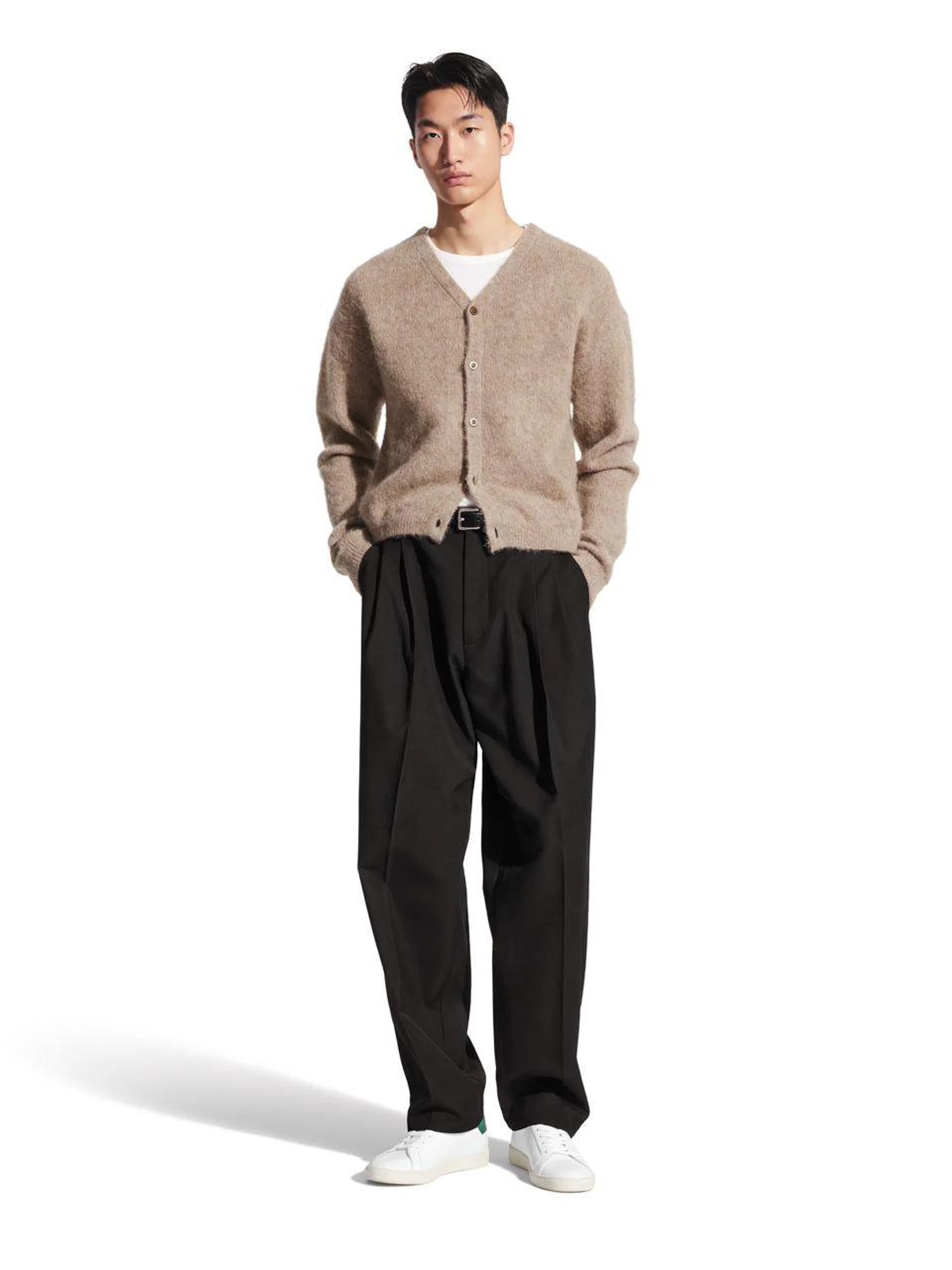
Choose by placement
Start with the viewing moment, then choose the still, motion, or creator-led direction that makes the product easiest to understand.
Placement-ready creative
An AI Facebook ad generator turns one product photo into placement-ready image and video creative for Feed, Reels, Stories, and creator-style campaigns. Choose a direction and supported aspect ratio, review every product detail, then export the approved creative to Meta Ads Manager and complete campaign setup there.
Feed image
Use a product-led still for fast recognition, controlled composition, flexible copy space, and close review of packaging or small details.
Reels & Stories video
Use short video to shape pacing, camera movement, demonstrations, reveals, and a final product view that remains easy to read.
Creator-style UGC
Use product and optional permitted person references to develop review, testimonial, or unboxing-style motion with visible source context.
Three reviewed placement directions
Each card is a reviewed Photo2Ads workflow example. Your product and optional person references become the inputs when you continue in Studio.
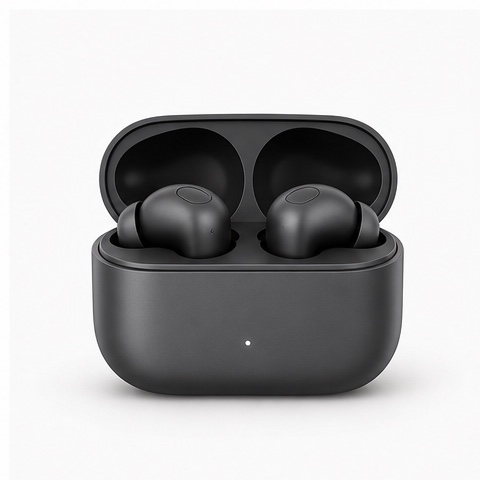
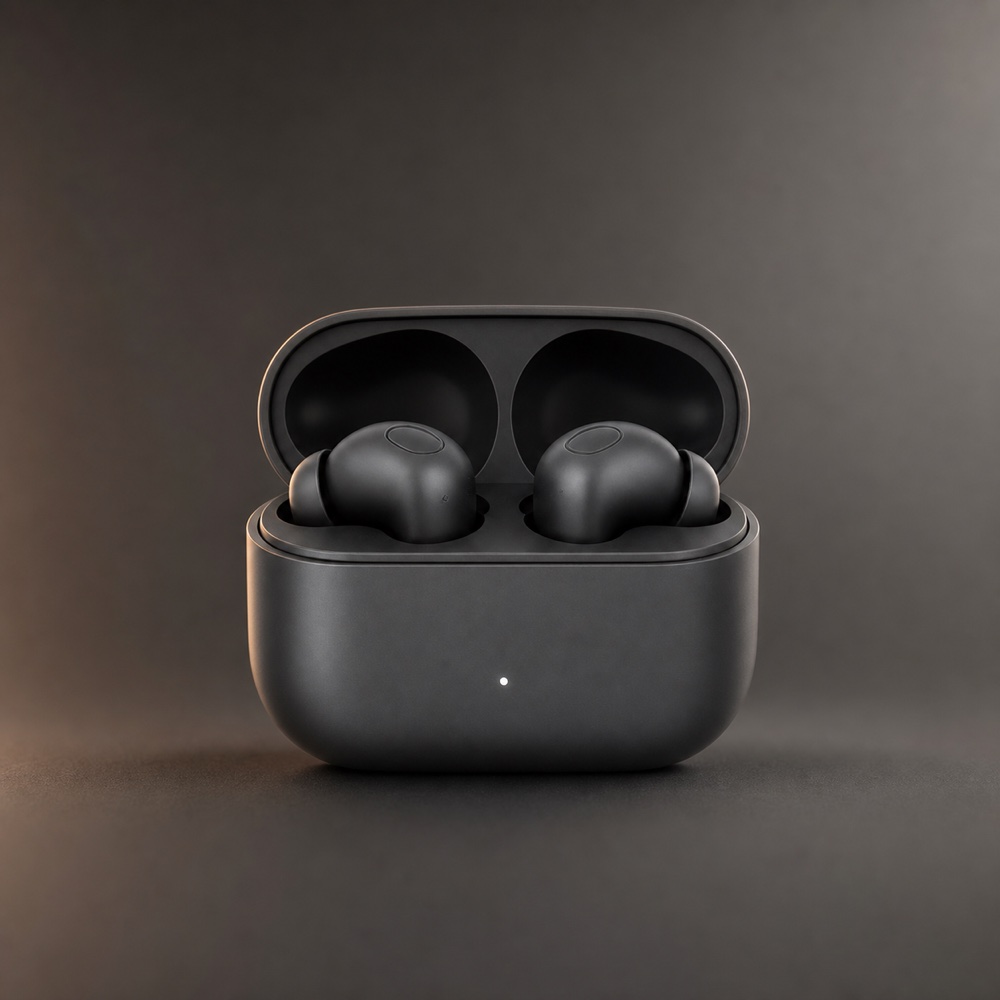 Feed image
Feed image · Product-first clarity
Reviewed Photo2Ads workflow example
Lead with a crisp product silhouette, controlled copy space, and a square composition that reads quickly in Feed.
Review focus: Inspect the case, earbud count, controls, finish, logo area, and approved campaign copy at full size.
View the reviewed workflow source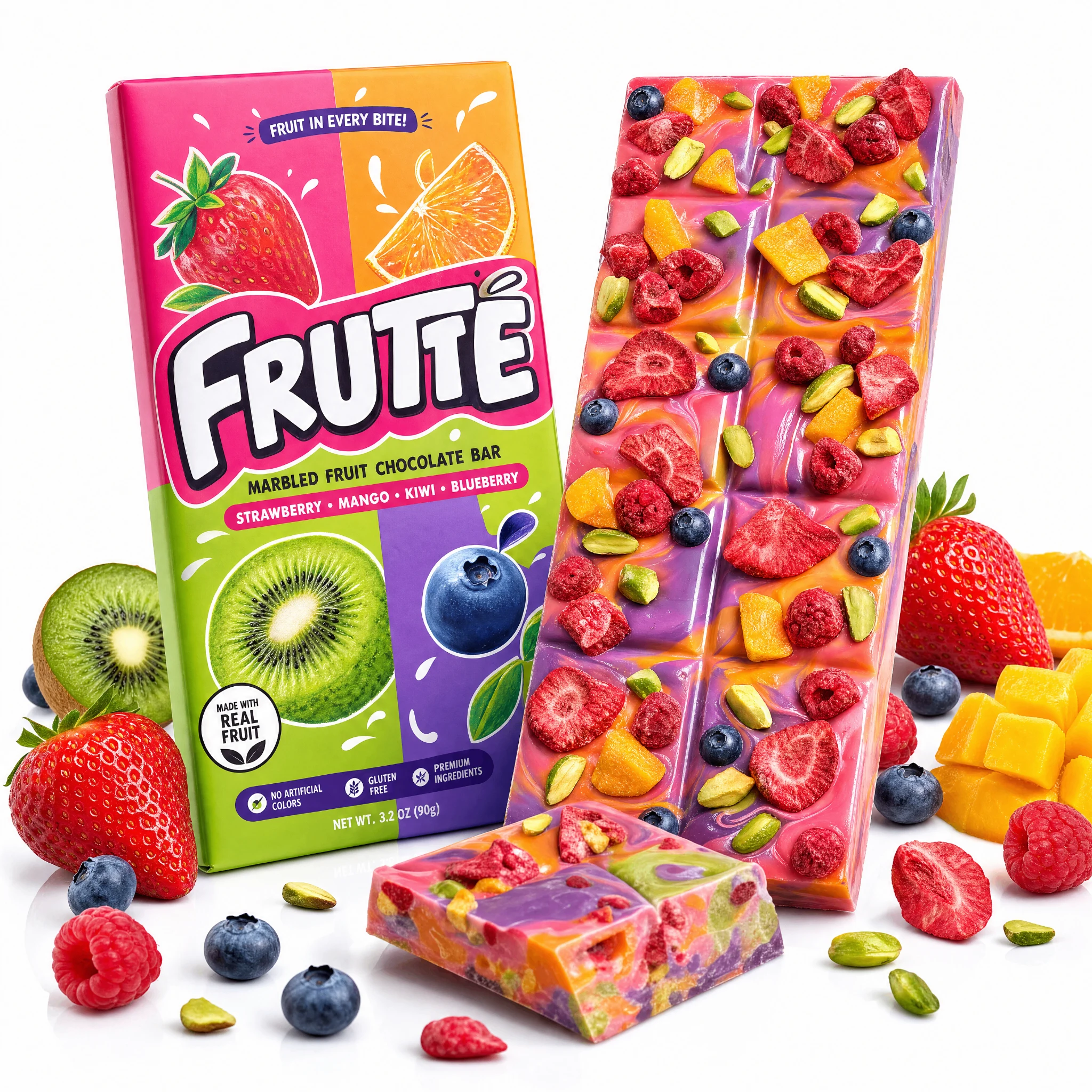
Reels & Stories video · Fast motion and a clear closing frame
Reviewed Photo2Ads workflow example
Open with energetic product motion, reveal material detail, and finish on a readable hero frame for vertical social viewing.
Review focus: Review package legibility, motion continuity, the closing product frame, and reserved space for approved copy.
View the reviewed workflow sourceCreator-style UGC video · Creator-led product context
Reviewed Photo2Ads workflow example
Pair the product with an optional permitted person reference for a close, conversational selfie-testimonial direction.
Review focus: Confirm product identity, person continuity, natural contact, readable branding, and transparent synthetic-content labeling.
View the reviewed workflow sourceThese examples document reusable Photo2Ads creative workflows. Your references, selected model, settings, revisions, and final review shape the campaign result.
Supported format options
Studio shows the aspect ratios supported by the selected image or video model, so the placement plan and production settings stay aligned.
Build a full-height composition for Reels, Stories, and other vertical viewing moments.
Keep the product and approved message balanced in a compact Feed-friendly frame.
Use a wider canvas for horizontal placements, demonstrations, and scene-led product storytelling.
Three direct steps
Keep the source, placement choice, generation settings, and publishing review in one focused workflow.
Step 01
Choose a clear view of the product, packaging, logo, materials, controls, and important text. Add a permitted person reference for creator-style UGC.
Step 02
Select Feed image, Reels or Stories motion, or creator-style UGC, then choose a supported model, aspect ratio, duration, resolution, and audio setting.
Step 03
Compare the result with every source, refine the direction, approve the creative, and export it to Meta Ads Manager to complete campaign setup.
Pre-publish review
Review the complete image or video at full size, align it with approved product facts, and prepare the labels appropriate to the campaign.
Compare shape, proportions, count, color, materials, accessories, and physical interactions with the supplied product views.
Zoom in on logos, labels, controls, claims, prices, certifications, and small package copy, then correct each detail that needs refinement.
Apply the labeling appropriate to the market, placement, campaign context, and way the creative will be presented to viewers.
Questions, answered
Yes. Start with one clear product photo, then choose a Feed image, a Reels or Stories video, or a creator-style direction. Studio presents the supported model and output settings for the selected path.
A product-led image works well when the campaign needs immediate recognition, controlled copy space, close packaging review, or a compact composition. A short video can add motion when the message benefits from a sequence.
Start with a vertical direction, establish the product early, use motion to develop one clear idea, and finish with a readable product frame. Studio shows the aspect ratios, durations, resolutions, and audio options supported by the selected model.
Upload your product and add an optional permitted person reference, then choose a review, testimonial, or unboxing-style direction. Review product fidelity, person continuity, contact, spoken or visible claims, and disclosure before publishing.
Photo2Ads supports vertical 9:16, square 1:1, and landscape options across current image and video models. The exact choices appear in Studio for the model and media direction you select.
Export your approved creative to Meta Ads Manager and complete campaign setup there. Choose the objective, audience, budget, placement mix, copy, destination, disclosure, and review settings in Meta’s workflow.
Continue planning
Your placement plan is ready
Choose a Feed image, motion, or creator-style direction, review the generated details, and export the approved creative for campaign setup in Meta Ads Manager.